
When users search for “what is Microsoft Access”, they are often trying to understand whether it’s still relevant, how it differs from Excel, and whether it’s worth learning in today’s cloud-driven world. This in-depth guide answers all of those questions with clarity, practical examples, and structured insights designed to rank well and provide real value.
Table of Contents
Introduction to Microsoft Access
Microsoft Access is a relational database management system (RDBMS) developed by Microsoft. It is part of the Microsoft Office ecosystem and is designed to help users store, organize, manage, and analyze structured data efficiently.
Unlike spreadsheets, Access enables users to build relationships between different datasets, making it a powerful tool for handling complex information.
At a high level, Microsoft Access combines:
- A database engine (to store data)
- A graphical user interface (to interact with data)
- Development tools (to create applications)
This combination makes it unique—it is not just a database, but also a rapid application development (RAD) platform.
Understanding Microsoft Access in Simple Terms
To simplify:
- Excel = Flat data storage (rows and columns)
- Access = Structured relational database
Think of Excel as a notebook, while Access is a fully organized filing system where every piece of information is interconnected.
For example:
- Excel: A list of customers in one sheet
- Access: Customers, orders, and payments stored in separate tables but linked together
History and Evolution of Microsoft Access
Microsoft Access was first released in 1992, and over the decades, it has evolved significantly. Initially, it was designed as a competitor to database systems like dBase and FoxPro.
Key Milestones
| Year | Development |
| 1992 | First release of Access |
| 2007 | Introduction of new UI (Ribbon interface) |
| 2010+ | Integration with SharePoint and cloud tools |
| 2020s | Continued updates under Microsoft 365 |
Despite the rise of cloud databases, Access remains widely used for small to medium-scale database applications.
Key Components of Microsoft Access
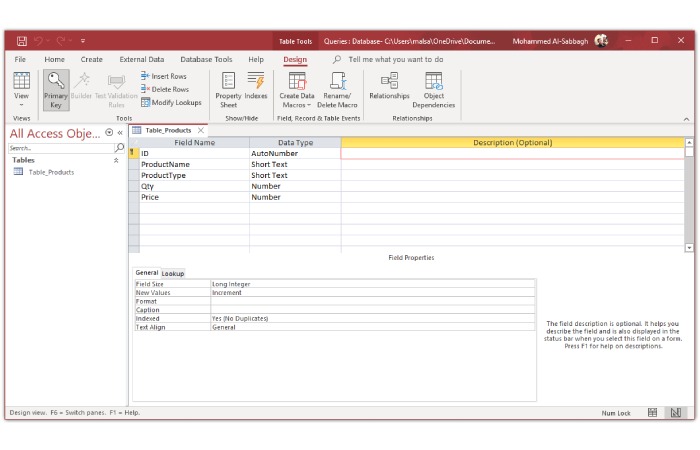
Microsoft Access is built around several core components. Understanding these is essential for beginners.
Tables
Tables are the backbone of any database.
- Store raw data in rows and columns
- Each row = record
- Each column = field
Example:
| Customer ID | Name | |
| 101 | John | john@email.com |
Queries
Queries allow you to extract and manipulate data.
- Filter records
- Perform calculations
- Combine multiple tables
Example:
- Show customers from Hyderabad
- Calculate total sales
Forms
Forms provide a user-friendly interface.
- Simplify data entry
- Reduce errors
- Improve usability
Reports
Reports are used for presenting data.
- Printable format
- Summaries and charts
- Business insights
Macros and VBA
These are used for automation.
- Macros = simple automation
- VBA (Visual Basic for Applications) = advanced programming
Core Features of Microsoft Access
Microsoft Access offers several features that make it a preferred choice for many users.
Easy-to-Use Interface
- Drag-and-drop tools
- Minimal coding required
Relational Database Capability
- Create relationships between tables
- Enforce data integrity
Query Builder
- Visual query design
- Supports SQL
Templates
- Pre-built database templates
- CRM, inventory, project tracking
Reporting Tools
- Generate professional reports
- Export to PDF or Excel
Integration
- Works with Excel, Outlook, SharePoint, and Power BI
Automation
- Automate workflows using macros and VBA
How Microsoft Access Works
Microsoft Access typically uses a split database architecture:
| Component | Description |
| Frontend | Forms, reports, queries |
| Backend | Data tables |
Why This Matters
- Improves performance
- Supports multiple users
- Enhances security
Microsoft Access Pricing in 2026
Microsoft Access is available through subscriptions and standalone purchases.
Pricing Table
| Plan | Type | Price Range |
| Microsoft 365 Personal | Subscription | ₹4,000–₹6,000/year |
| Microsoft 365 Business | Subscription | ₹8,000–₹12,000/year |
| Access Standalone | One-time | ₹10,000–₹15,000 |
Visual Insight: Usage Distribution
Here’s an approximate breakdown of how Access is used:
- Small business tools → 40%
- Reporting → 25%
- Prototyping → 20%
- Legacy systems → 15%
This highlights its strength in mid-scale applications.
Advantages of Microsoft Access
Cost-Effective
Access is much cheaper than enterprise database systems.
Beginner-Friendly
- Easy learning curve
- No advanced coding required
Rapid Development
- Build applications quickly
Integration with Microsoft Tools
- Seamless connection with Excel and Power BI
Offline Access
- Works without internet
Limitations of Microsoft Access
Scalability Issues
- Not suitable for large enterprise systems
Windows-Only
- No native macOS support
Multi-User Limitations
- Performance issues with many users
Security Constraints
- Less robust than enterprise databases (Wikipedia)
Microsoft Access vs Excel
This is one of the most important comparisons.
Detailed Comparison Table
| Feature | Access | Excel |
| Data Structure | Relational | Flat |
| Best Use | Database management | Calculations |
| Scalability | Medium | Low |
| Data Integrity | High | Low |
| Automation | VBA + Macros | VBA |
Microsoft Access vs SQL Databases
| Feature | Access | SQL Server |
| Complexity | Low | High |
| Scalability | Medium | Very High |
| Cost | Low | High |
| Use Case | Small apps | Enterprise systems |
When Should You Use Microsoft Access?
You should consider Access when:
- Your Excel files are becoming too complex
- You need structured relationships
- You want to build a quick database application
- You have a limited budget
Real-World Use Cases
Small Businesses
- Customer management
- Inventory tracking
Schools and Colleges
- Student records
- Attendance tracking
Freelancers
- Project tracking
- Client databases
Internal Tools
- Reporting systems
- CRM applications
Example: Simple Database Structure
Here’s a basic example of how Access organizes data:
Customers Table
| Customer ID | Name | City |
| 1 | Ravi | Hyderabad |
Orders Table
| Order ID | Customer ID | Amount |
| 101 | 1 | ₹5000 |
Here, Customer ID links both tables, creating a relationship. (TutorialsPoint)
Microsoft Access in 2026: Is It Still Relevant?
Microsoft Access is not obsolete, but its role has shifted.
Where It Excels
- Small business applications
- Internal tools
- Rapid prototyping
Where It Falls Short
- Cloud-native apps
- Large-scale systems
Modern tools like Power Apps and cloud databases are replacing it in enterprise environments, but Access still holds value in localized and lightweight applications.
Alternatives to Microsoft Access
If Access is not suitable, consider these alternatives:
| Tool | Best For |
| MySQL | Large databases |
| PostgreSQL | Advanced applications |
| Airtable | Cloud-based databases |
| Google Sheets | Simple data management |
| Power Apps | Low-code app development |
Best Practices for Using Microsoft Access
To get the most out of Access:
- Normalize your data (avoid duplication)
- Use primary keys
- Create relationships properly
- Use queries instead of manual filtering
- Backup your database regularly
Common Mistakes to Avoid
- Using Access like Excel
- Not creating relationships
- Overloading a single table
- Ignoring indexing
- Not splitting the database
Who Should Learn Microsoft Access?
Microsoft Access is ideal for:
- Students learning databases
- Small business owners
- Office professionals
- Data analysts (beginners)
Future of Microsoft Access
Microsoft continues to support Access, but its future lies in:
- Integration with cloud tools
- Hybrid database systems
- Low-code development
It is unlikely to disappear but will remain a niche tool.
Pros and Cons Summary
Pros
- Easy to use
- Affordable
- Quick development
- Strong reporting
Cons
- Limited scalability
- Windows-only
- Aging ecosystem
Final Verdict
Microsoft Access remains a powerful yet underrated tool for managing structured data. It is not designed for enterprise-level systems, but for small to medium applications, it is highly effective.
If your needs fall between Excel and SQL databases, Access is often the perfect middle ground.
Frequently Asked Questions
Is Microsoft Access free?
No, it requires a Microsoft 365 subscription or a one-time purchase.
Is Microsoft Access difficult to learn?
No, it is beginner-friendly compared to other database systems.
Can Microsoft Access replace Excel?
Not entirely. Both tools serve different purposes.
Is Access still used today?
Yes, especially in small businesses and internal systems.
Conclusion
Understanding what Microsoft Access is goes beyond its definition. It is a tool that bridges the gap between spreadsheets and enterprise databases.
For users who need structure, relationships, and efficiency without complexity, Microsoft Access remains a practical and relevant solution in 2026.

Afiya Jafar
Afiya Jafar is a technology and digital lifestyle writer at Digital Life Hackers who focuses on making technology easier to understand and more useful in everyday life. Her work covers software, applications, online tools, gadgets, mobile technology, artificial intelligence and emerging digital trends.

Sameena Begum
Sameena Begum is a technology and digital content reviewer at Digital Life Hackers. She reviews selected articles to help improve clarity, organisation, consistency, factual presentation and overall reader usefulness.